John J. Camilleri
Updated: 23 Jan 2012
The research leading to these results has received funding from the European Union’s Seventh Framework Programme (FP7/2007-2013) under grant agreement n° FP7-ICT-247914.
This documentation is also available at the MOLTO Project Wiki.
The aim behind developing a desktop IDE for GF is to provide more powerful tools than may be possible and/or practical in a web-based environment (the GF Web IDE). In particular, the ability to resolve identifier cross-references and browse external libraries quickly during development time is one of the primary motivations for the project.
The choice was made to develop this desktop IDE as a plugin for the Eclipse Platform as it emerged as the most popular choice among the GF developer community. Support for the platform is vast and many tools for adapting Eclipse to domain-specific languages already exist. Unlike the zero-click Web IDE approach, using the GF Eclipse plugin (GFEP) will require some manual installation and configuration on the development machine. Thus the GFEP is aimed more at seasoned developers rather than the curious GF newbie.
The starting point for the GFEP is using the Xtext DSL Framework for Eclipse. By converting the GF grammar into the appropriate Extended-BNF form required by the LL(*) ANTLR parser, the framework provides a good starting point for future plugin development, already including a variery of syntax checking tools and some cross-reference resolution support. The specific requirements of the GF language, particularly in the way of its special module hierarchy, mean that significant customisations to this generated base plugin are needed.
The GFEP is being developed by as part of Work Package 2 of the MOLTO Project.
Scoping, Naming, ResourceDescription implementations.PATH environment variableNote about Available Software Sites
In order for dependencies to be satisfied, you need to ensure that your Eclipse has the following update site URLs set:
Steps for installation
http://www.grammaticalframework.org/eclipse/release/~/.cabal/bin/gf, which may be wrong depending on your
system and how you installed GF.GF_LIB_PATH variable.(External) you can safely delete this via the Eclipse Project Explorer. It is no longer used in GFEP >= 1.2.3Some steps you can follow to get a feel of of the plugin’s features.
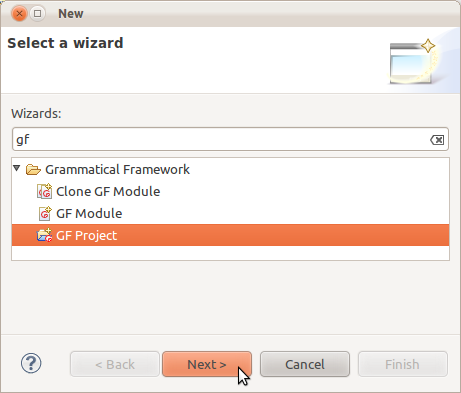
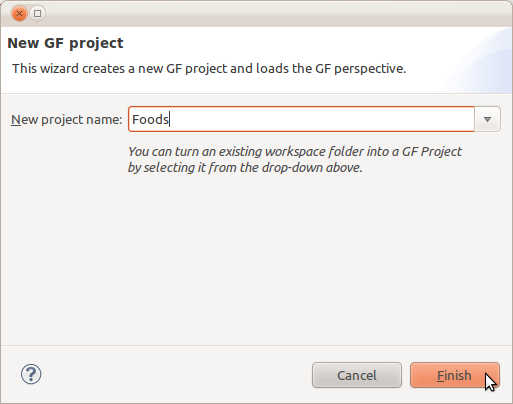
If asked whether you want to add the Xtext nature to your project, you can safely say No (this prompt has been removed in newer versions).
You can find some small examples at http://www.grammaticalframework.org/eclipse/examples/. Download the files and manually add them to your Eclipse workspace to experiment with some of the plugin features.
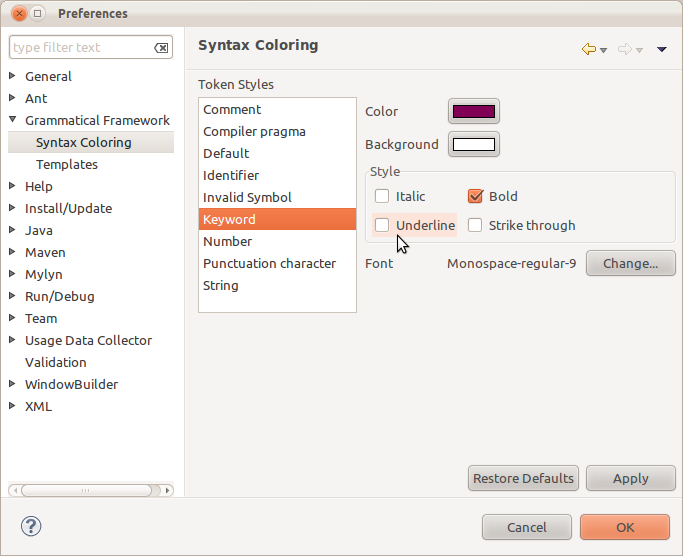
You can change your syntax colouring styles as you wish from Window → Preferences → Grammatical Framework → Syntax Coloring
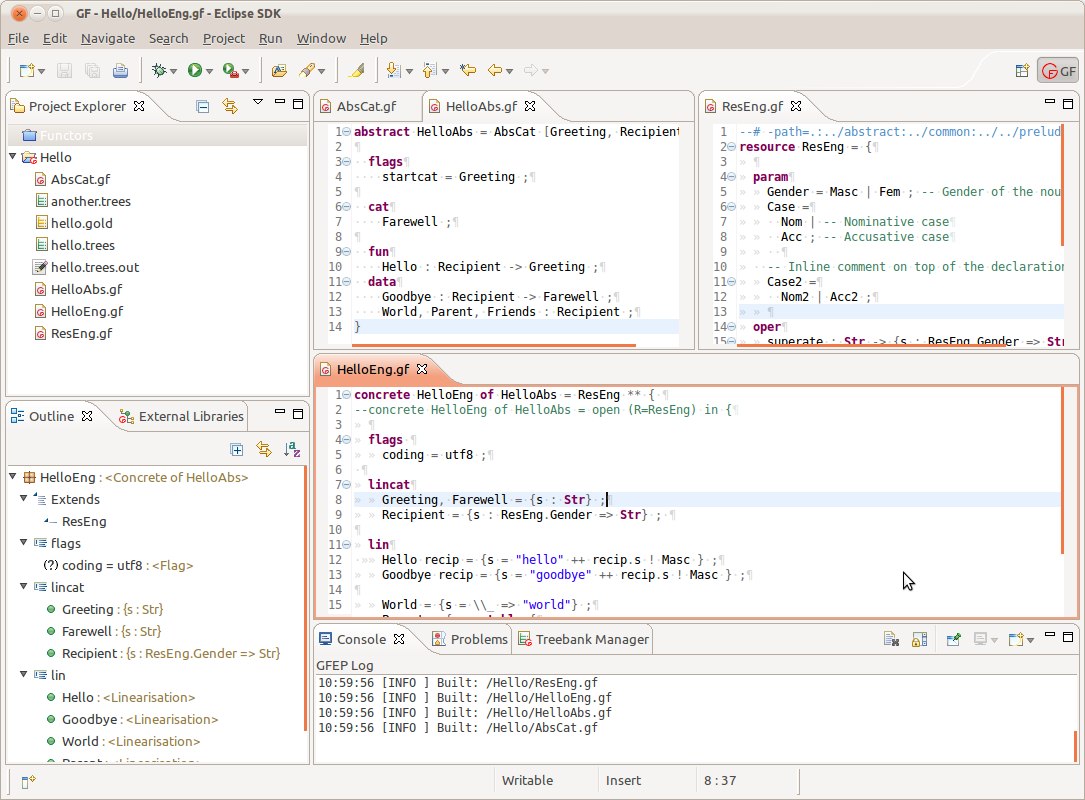
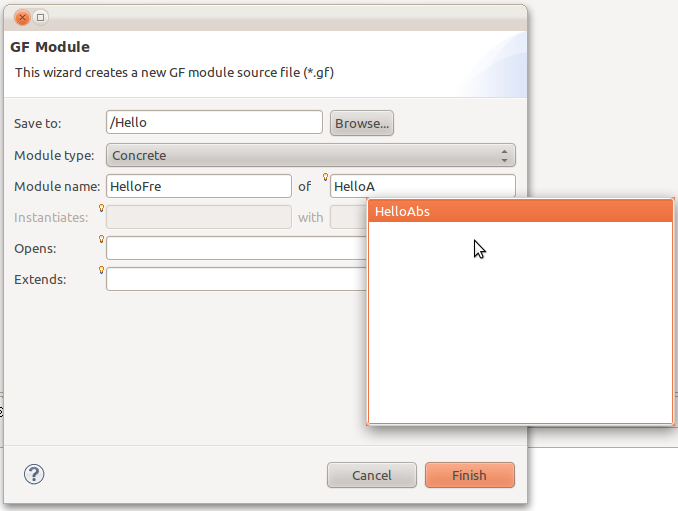
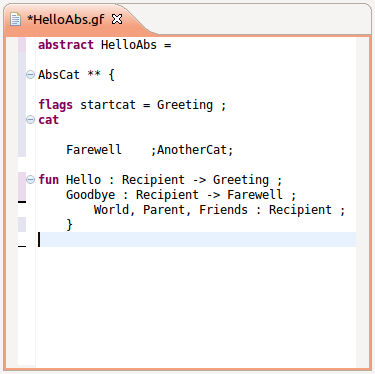
cat definition for example will produce warnings and/or errors in other the modules.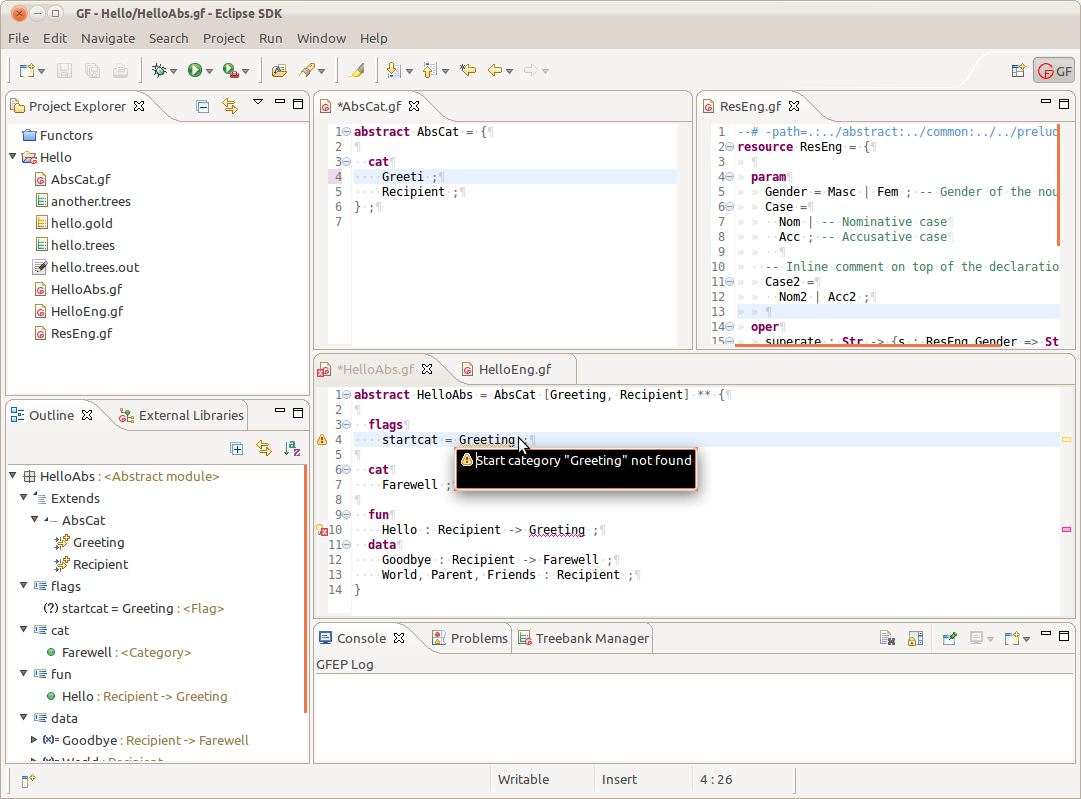

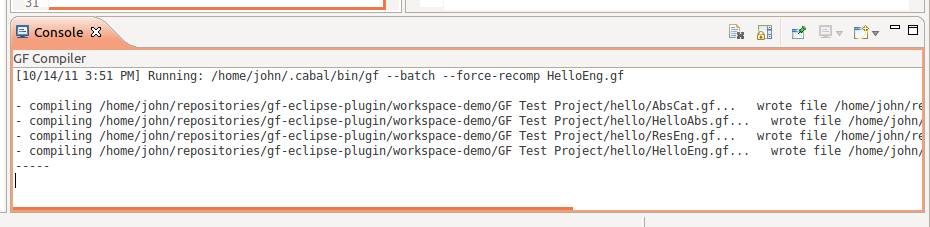
The plugin provides its own console view named GFEP Log, which shows log messages based on the Log Level preference (Window → Preferences → Grammatical Framework).
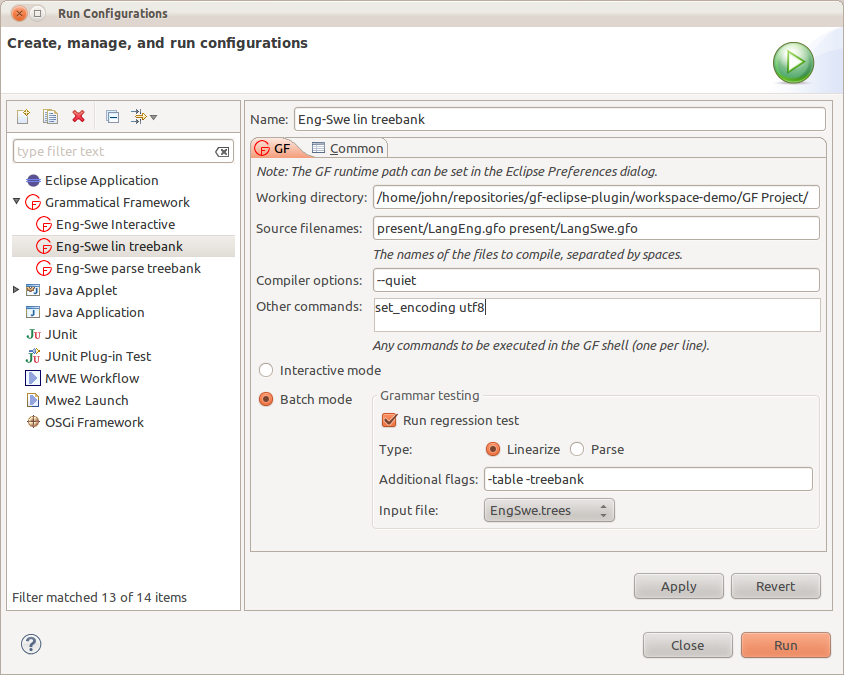
Additionally, everytime a grammar is Run a new console is opened to display the output. This console may also serve as the interactive GF Shell, depending on the Interactive Mode checkbox in your Run Configuration.
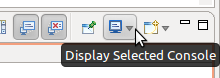
Eclipse does not make it obvious when multiple console windows open; click on the Display Selected Console button to switch between open consoles:
The Eclipse console implementation does not support command history (up arrow) or auto-completion (tab).
You can set the log verbosity from Window → Preferences → Grammatical Framework. This setting also affects the verbosity of the log file gfep.log.
For validation to work correctly, the project’s Build Automatically option should be turned on.
The in-editor validation sometimes needs to be triggered/updated by a keystroke. If you can still see errors which you believe should be correct, try adding a space character to ensure the validation is re-triggered.
Sometimes you may get an entire file marked with errors, even though in fact there is only a single error which is causing the internal builder to fail. In such cases referring to the Problems view should help you locate the cause. This issue is particularly relevant when changes made to one module may induce errors in its descendants (e.g. renaming a parameter in a resource module). This behaviour will hopefully be improved in future versions.
Please try to use the plugin for developing your own GF projects and report any issues you come up against.
For all bug reports and feature requests please use the GitHub Issue Tracker at https://github.com/GrammaticalFramework/gf-eclipse-plugin/issues.
Do not hesitate to let us know how you think the plugin can be improved!
As part of the evaluation of the GF Eclipse Plugin, feedback (both negative and positive) on the following would be appreciated:
The GFEP writes a log file in your Eclipse workspace folder, self-evidently named gfep.log. When things go wrong it may be useful to consult this file, or even send it as part of any feedback you provide.